
Bluetooth is one of those technologies you never think about until it stops working. When it does, it instantly disrupts your day. Your headphones won’t connect. Your mouse lags or disconnects. Bluetooth disappears entirely from Windows 11 settings, leaving you wondering whether something broke overnight.
If you’re dealing with Bluetooth not working in Windows 11, you’re not alone. This is one of the most reported Windows 11 issues, especially after updates, sleep cycles, or hardware changes. The frustration usually comes from not knowing where to start or which fix actually works.
The truth is simple: Bluetooth problems in Windows 11 are rarely random. They follow a predictable chain of causes. When you fix them in the correct order, Bluetooth almost always comes back.
This guide walks you through that order, step by step, in plain language, without shortcuts, fluff, or unnecessary explanations.
Why Bluetooth Stops Working on Windows 11
Bluetooth in Windows 11 depends on multiple layers working together. There is the physical Bluetooth adapter, the driver controlling it, Windows services running in the background, power management rules, and interference from other wireless signals. When one layer fails, Bluetooth breaks.
Windows 11 also handles power more aggressively than previous versions. Laptops especially may disable Bluetooth silently to save battery. Windows updates can replace drivers. Sleep mode can interrupt services. USB devices can interfere with signals. Any one of these can cause Bluetooth to stop working even though nothing obvious changed.
Once you understand this, fixing Bluetooth becomes a process instead of guesswork.
Step 1: Make Sure Bluetooth Is Actually Enabled
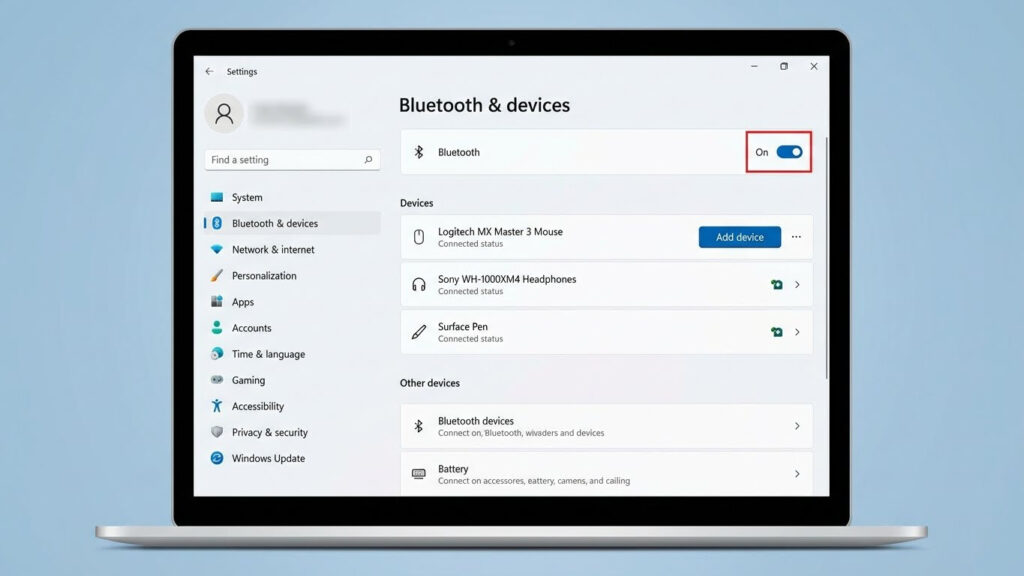
Start with the obvious, because Windows 11 does not always make it clear when Bluetooth is off.
Open Settings and go to Bluetooth & devices. The Bluetooth toggle should be turned on. If it is off, turn it on and wait a few seconds. Then check Quick Settings by clicking the network, sound, or battery icon on the taskbar. Bluetooth should appear there as active.
Also confirm that Airplane mode is not enabled. Airplane mode disables Bluetooth even if the toggle looks normal.
On laptops, check for function keys or hardware shortcuts that control wireless radios. Some systems still allow Bluetooth to be disabled outside Windows itself.
If Bluetooth turns on normally at this stage, the issue may already be resolved.
Step 2: Reset Bluetooth Properly
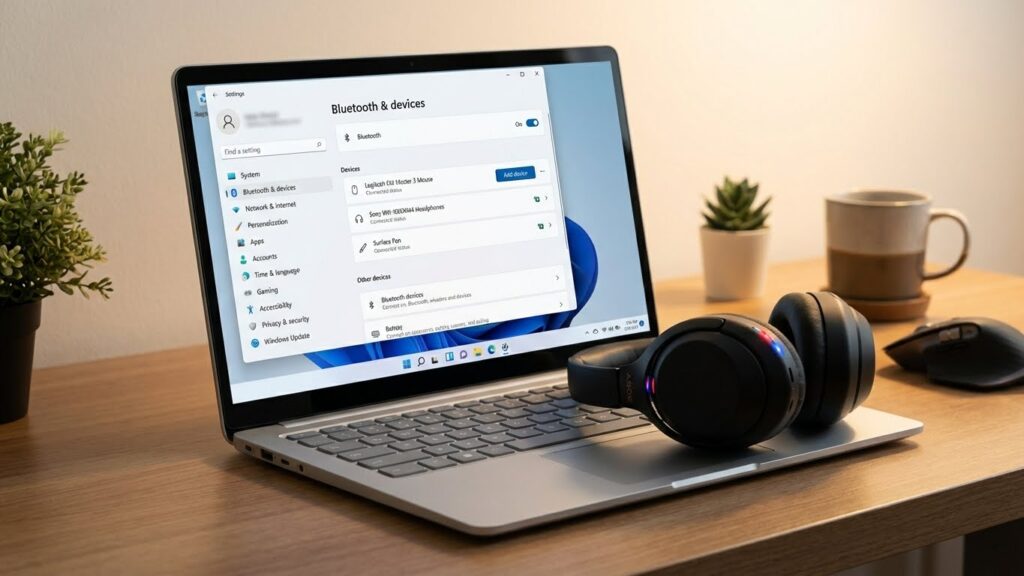
Bluetooth connections can become stuck, especially after sleep or hibernation. A proper reset clears temporary communication failures.
Turn Bluetooth off in Windows settings. Power off the Bluetooth device you are trying to connect, such as headphones or a mouse. Wait about ten seconds. Turn the device back on and put it into pairing mode. Then turn Bluetooth back on in Windows and restart your computer.
This process resets both sides of the connection. Many Bluetooth issues stop here.
Image prompt:
Wireless Bluetooth headphones in pairing mode beside a Windows 11 laptop on a desk, realistic lighting, natural workspace
Step 3: Use the Windows 11 Bluetooth Troubleshooter
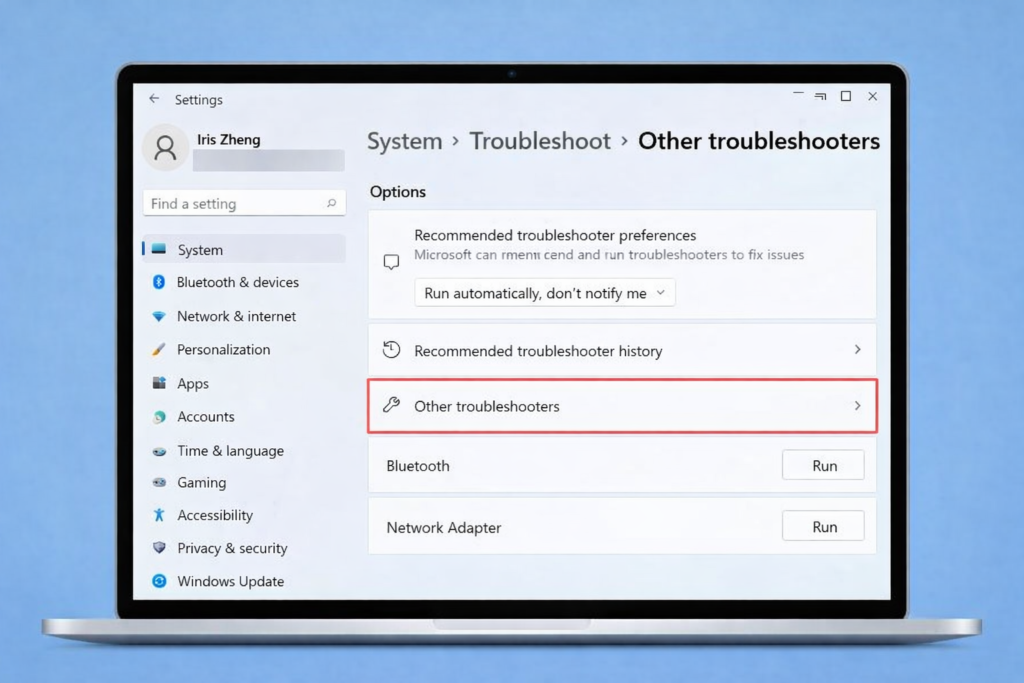
When Bluetooth disappears from Settings or refuses to turn on, this step becomes essential. Windows 11 changed how troubleshooting works, which is why many users miss this fix entirely.
In current versions of Windows 11, Bluetooth troubleshooting is available directly inside Settings. Open Settings, go to System, then select Troubleshoot. From there, click Other troubleshooters. This screen lists built-in diagnostic tools for common hardware and system problems, including Bluetooth.
On the Other troubleshooters page, locate Bluetooth and click Run. Windows will immediately begin checking the system in the background. It verifies whether Bluetooth services are running, confirms that the Bluetooth adapter is detected, and checks for driver communication issues. This process usually takes a minute or two and runs without requiring manual input.
This step is especially important if Bluetooth is missing entirely from the Bluetooth & devices section or if the Bluetooth toggle does not appear at all. In many cases, the troubleshooter silently restarts disabled services or resolves minor system conflicts without displaying an obvious error message.
After the troubleshooter finishes, restart your computer even if Windows reports that no problems were found. Bluetooth fixes often do not fully apply until after a reboot, and skipping this step can make it seem like the troubleshooter failed when it actually worked.
Step 4: Confirm the Device Is Discoverable
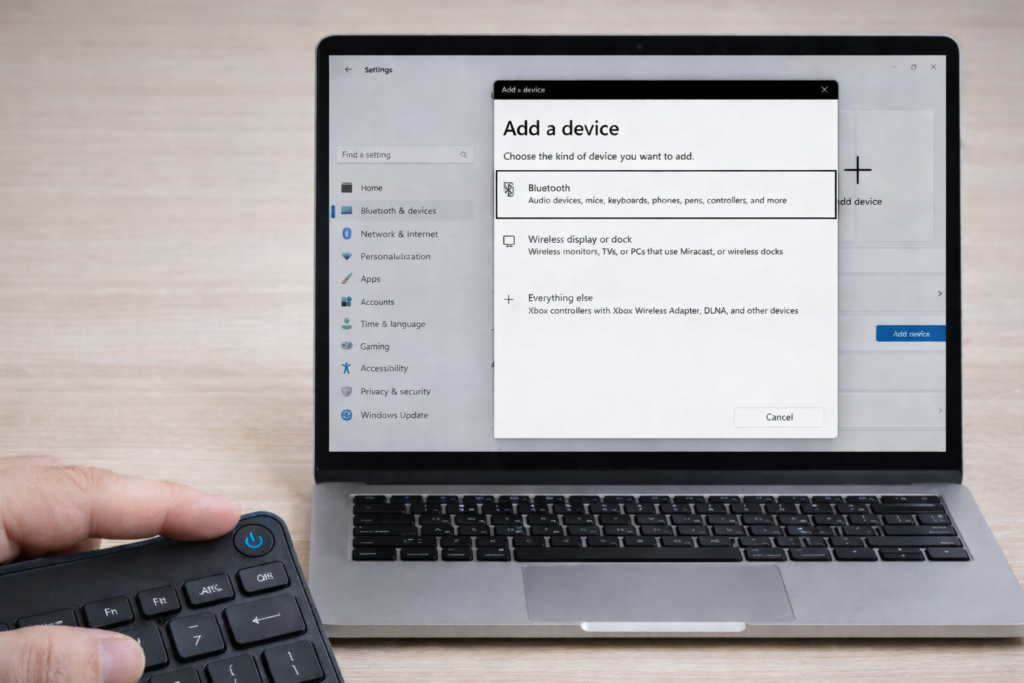
Windows can only connect to Bluetooth devices that are actively advertising themselves. If a device is not in pairing mode, it simply will not appear, no matter how many times you refresh the list.
Start by putting the device into pairing mode. For most Bluetooth headphones, this means pressing and holding the power button until an indicator light begins flashing. On Bluetooth keyboards and mice, pairing usually requires pressing a small button located on the underside or along the edge of the device. Some devices enter pairing mode automatically when turned on for the first time, while others require manual activation every time.
Once the device is ready, open Settings and go to Bluetooth & devices. Click Add device, then choose Bluetooth from the list. Windows will begin scanning for nearby devices that are actively discoverable.
If your device still does not appear, open Bluetooth device settings and change the discovery option to Advanced. This allows Windows 11 to detect older accessories or less common Bluetooth hardware that may not show up using the default scan mode.
At this stage, patience matters. Keep the device close to the laptop and avoid switching apps while Windows completes the scan.
Step 5: Remove and Re-Pair the Device
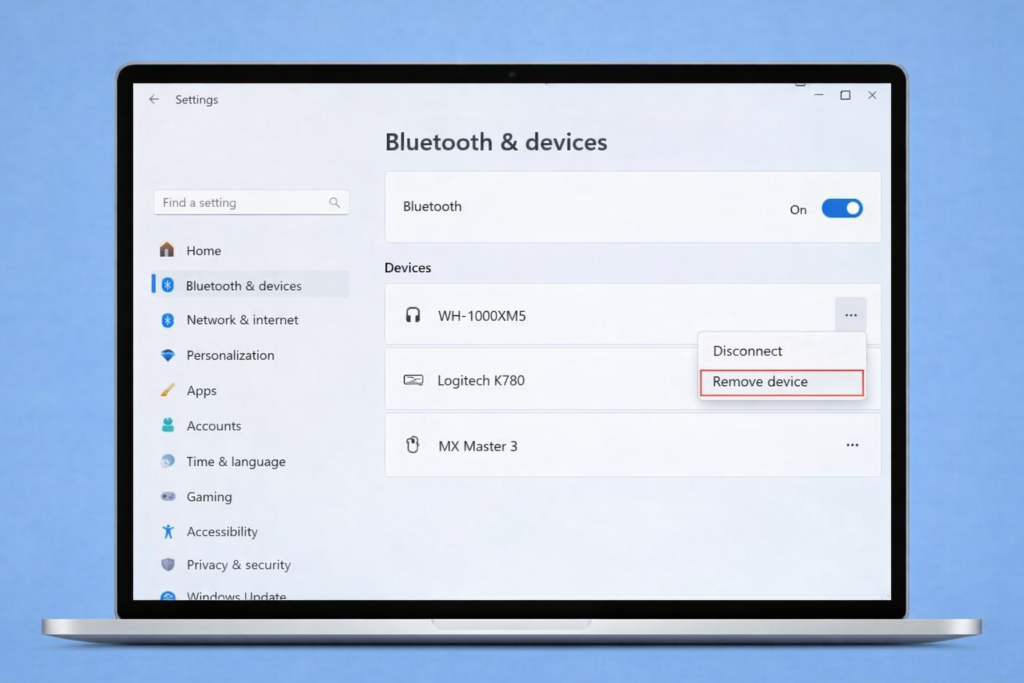
When a Bluetooth device connects but doesn’t work correctly—no audio, delayed input, or frequent disconnects—the saved pairing information may be corrupted. This can happen after Windows updates, sleep cycles, or switching the device between multiple computers.
Open Settings and go to Bluetooth & devices. Find the device causing problems, click the menu next to it, and remove it from the list. Restart your PC to fully clear the old connection data. Once the system boots back up, put the device into pairing mode again and add it as if you were connecting it for the first time.
This process forces Windows 11 to create a fresh connection profile. In many cases, it immediately resolves stubborn Bluetooth issues that won’t respond to basic fixes.
Step 6: Update Windows Completely
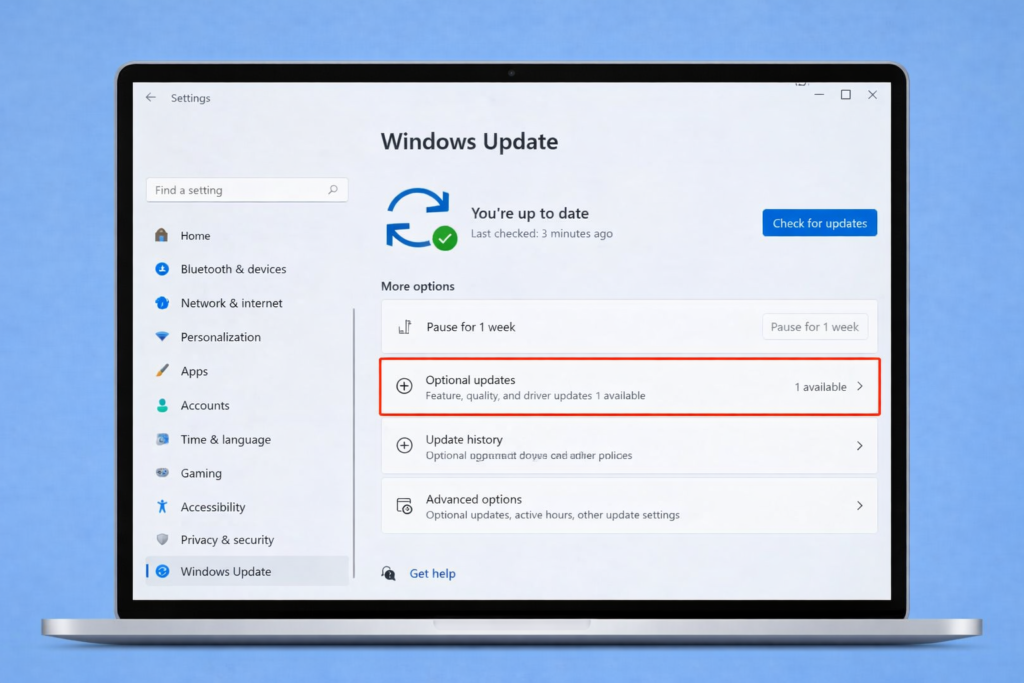
Bluetooth drivers are often delivered through Windows Update, including optional updates that many people overlook. Skipping these updates can leave your system running outdated or incompatible drivers.
Open Settings and go to Windows Update. Install all available updates first, then open Optional updates and check for any Bluetooth or wireless driver updates listed there. These optional drivers are frequently released to fix connection issues, stability problems, or compatibility bugs.
If Bluetooth stopped working immediately after a Windows update, don’t stop updating. Microsoft often releases corrective patches shortly after major updates, and installing the remaining updates can restore Bluetooth functionality without additional fixes.
Step 7: Update or Reinstall Bluetooth Drivers
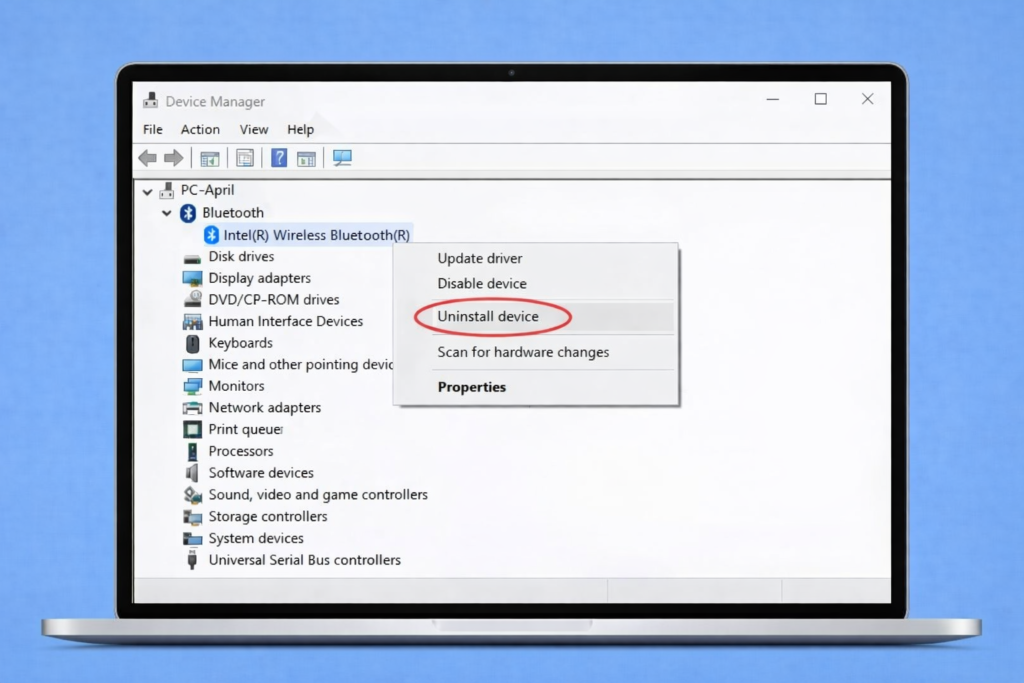
Driver problems are the most common reason Bluetooth stops working in Windows 11. When the driver becomes outdated or corrupted, Bluetooth may disappear, fail to connect, or disconnect repeatedly.
Open Device Manager and expand the Bluetooth section. Right-click your Bluetooth adapter and select Update driver, then allow Windows to search automatically for the latest version. If an updated driver is available, install it and restart your computer.
If updating does not resolve the issue, return to Device Manager, right-click the Bluetooth adapter again, and choose Uninstall device. Restart your PC once the uninstall completes. Windows will automatically detect the Bluetooth hardware and reinstall a fresh driver during startup.
On laptops, the most reliable drivers often come directly from the manufacturer’s support website. These drivers are specifically tuned for your system’s hardware and power management, which can make a noticeable difference in Bluetooth stability.
Step 8: Restart Bluetooth Services
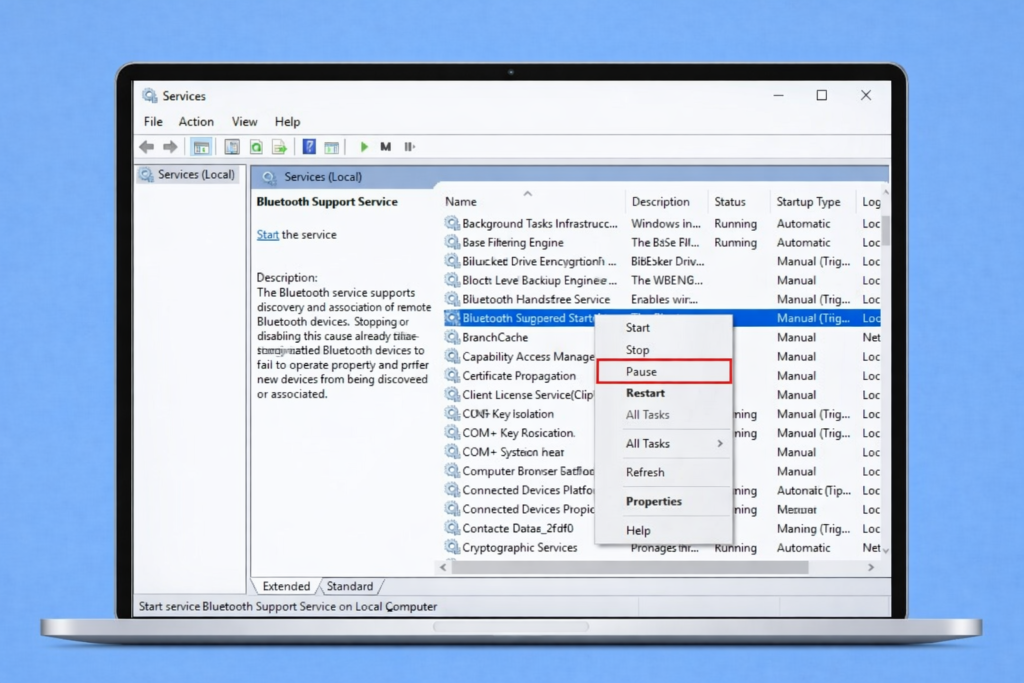
Bluetooth in Windows 11 depends on background system services to operate correctly. If these services stop or fail to start properly, Bluetooth may appear broken even though the adapter itself is still present and detected.
Press Windows + R, type services.msc, and press Enter to open the Services window. Scroll through the list until you find Bluetooth Support Service. Right-click it and choose Restart. After restarting the service, open its properties and make sure the startup type is set to Automatic so it runs every time Windows starts.
This fix is especially effective when Bluetooth works immediately after restarting your computer but stops working again later. Restarting the service restores communication between Windows and the Bluetooth hardware without requiring a full system reboot.
Step 9: Eliminate USB and Wireless Interference
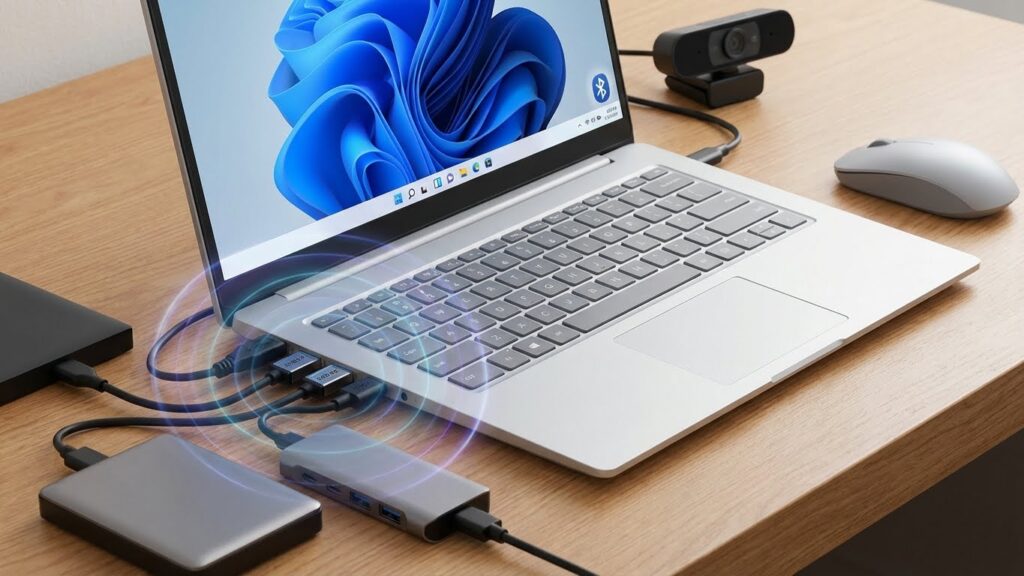
Bluetooth runs on the 2.4 GHz spectrum, the same space used by Wi-Fi and many USB 3.0 devices. When too many signals compete in that range, your Bluetooth connection can become weak, unstable, or drop entirely. This can happen even when everything else on your PC appears to be working normally.
If you notice Bluetooth problems only when certain USB devices are connected—like external hard drives, webcams, capture cards, USB hubs, or even poorly shielded cables—move those devices to different USB ports or plug them in farther away. A short USB extension cable is often enough to reduce interference dramatically. Switching your Wi-Fi network from 2.4 GHz to 5 GHz can also clear up congestion and give Bluetooth more breathing room.
These issues often look like software problems, but they’re physical signal conflicts. Creating a little distance between devices is sometimes all it takes to restore a stable Bluetooth connection.
Step 11: Fix Bluetooth Audio Problems
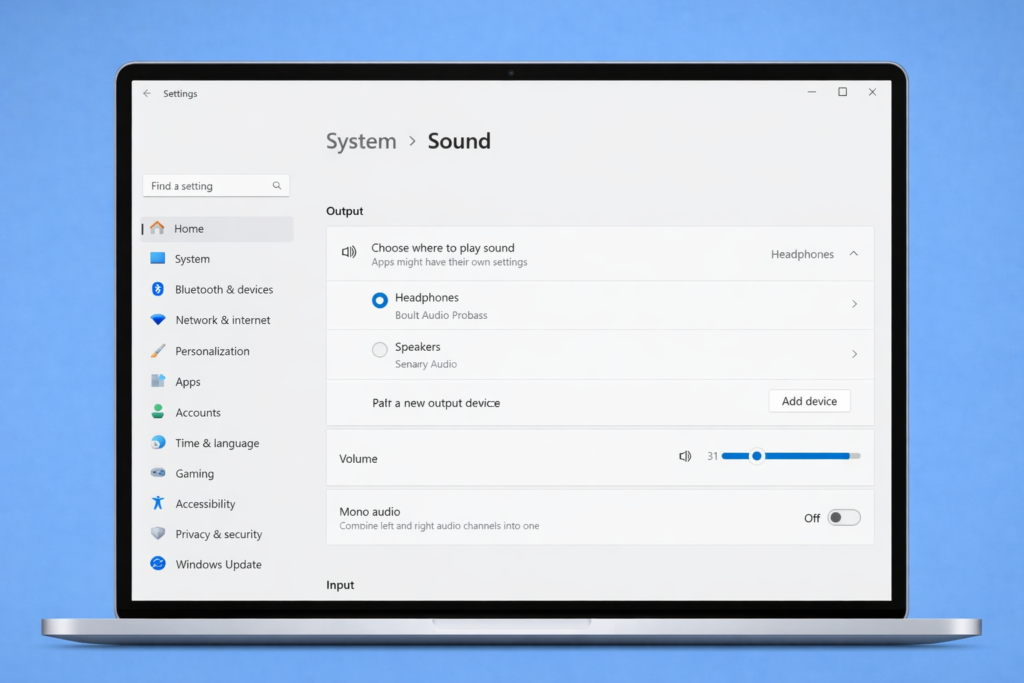
When Bluetooth headphones connect but produce no sound—or the audio switches back to your speakers—Windows 11 is usually picking the wrong output device. This happens more often than people expect, especially after reconnecting a headset or waking the system from sleep.
Open Settings, go to System, then Sound, and check which device is selected under Output. Make sure your Bluetooth headphones are chosen instead of your speakers. Windows sometimes changes the output automatically, especially if multiple audio devices are connected.
If your audio becomes muffled or drops in quality when the microphone activates, remove and re-pair the headset to refresh its Bluetooth profile. After re-pairing, confirm that your Bluetooth and audio drivers are fully updated. Windows 11 is improving Bluetooth audio support, but stable performance still depends heavily on good drivers.
Step 12: When Bluetooth Is Missing Completely
If Bluetooth is missing from both Settings and Device Manager, it almost always points to a deeper issue—usually a driver failure, a disabled wireless component in firmware, or a hardware problem with the Bluetooth adapter itself.
Start by running the Bluetooth troubleshooter and installing all pending Windows updates. Then reinstall the Bluetooth driver through Device Manager, or download the correct driver from your laptop manufacturer’s support page. If your system has wireless controls in the BIOS or UEFI settings, make sure Bluetooth is enabled there as well.
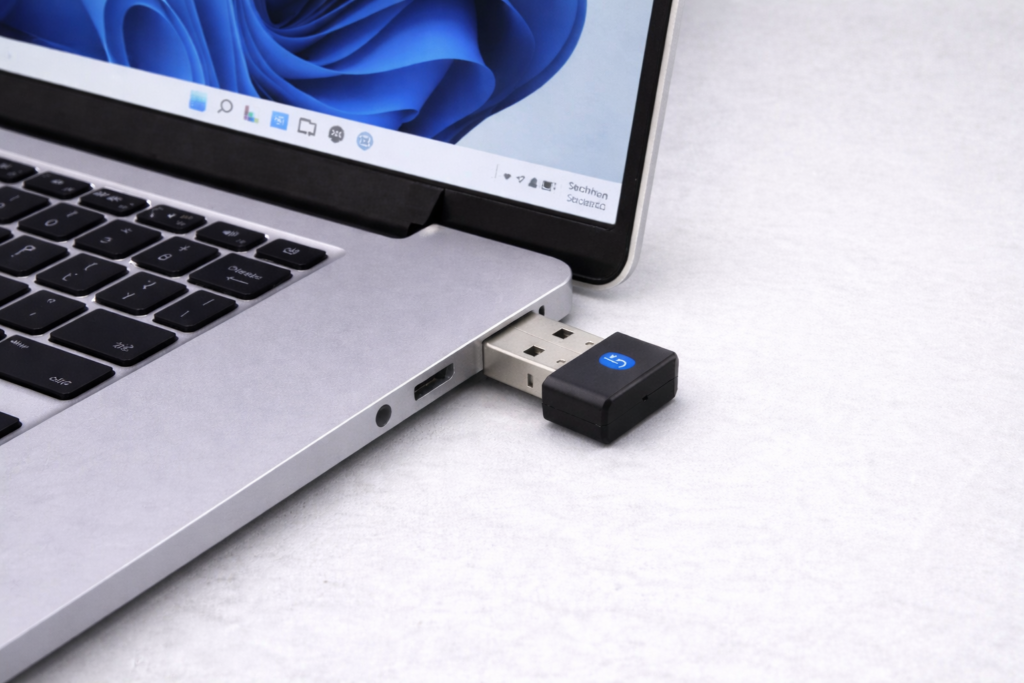
If Bluetooth still does not reappear, the internal adapter may have failed or become unsupported after a major update. When that happens, the simplest and most reliable fix is to use a USB Bluetooth adapter. These small plug-and-play adapters restore full Bluetooth functionality in seconds and work perfectly with Windows 11.
Conclusion
Bluetooth not working in Windows 11 is frustrating, but it is rarely unsolvable. The issue almost always traces back to drivers, power management, services, or interference. When you follow the steps in the correct order, Bluetooth usually returns without drastic measures like resetting Windows.
The key is patience and structure. Fix the foundation first, then move deeper only if needed. Once Bluetooth is restored, it fades back into the background, doing exactly what it should without attention.
That is how Bluetooth is supposed to work.
