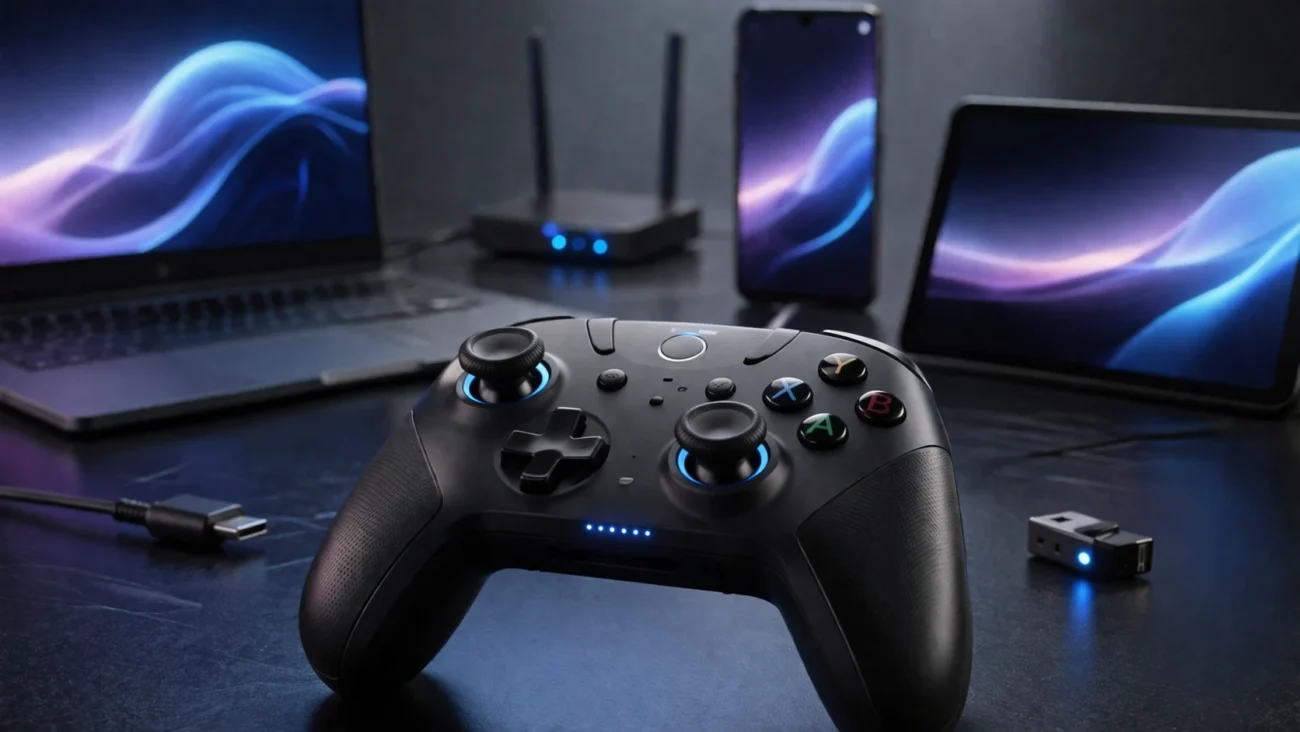
Search for “Connectivity HSSGamepad” and you’ll land in a strange corner of the internet. The pages look helpful at first glance—setup guides, troubleshooting steps, compatibility claims—but something feels off. There’s no clear manufacturer, no widely recognized product line, and very little in the way of verifiable documentation.
But people are clearly searching for it. And they’re not doing it out of curiosity. They’re trying to connect a controller that isn’t behaving, or they’ve stumbled across the term and want to know if it’s worth their money.
So this article takes a different approach. Instead of repeating generic controller advice, it breaks down what “Connectivity HSSGamepad” appears to mean, what users are actually dealing with, and what can be confirmed versus what’s just being copied from one site to another.
What “Connectivity HSSGamepad” Actually Refers To
The phrase itself doesn’t point to a well-established brand like Sony, Microsoft, or Logitech. There’s no widely recognized company called HSSGamepad with official documentation, support forums, or verified retail listings.
Instead, the term shows up mostly in blog-style content that describes a generic wireless game controller. These articles often describe the same features: Bluetooth pairing, USB-C wired mode, and sometimes a 2.4GHz wireless dongle. But here’s the thing—those features are common across dozens of low-cost controllers, especially those sold through marketplaces like AliExpress or rebranded on Amazon.
That suggests “HSSGamepad” may not be a single product at all. It could be a placeholder name, a rebranded device, or simply a keyword built around generic hardware.
For readers, that distinction matters. If you’re trying to fix a connection issue, you’re not dealing with a known ecosystem. You’re dealing with a device that may not have consistent firmware, drivers, or support.
How Connectivity Is Supposed to Work
Even if the branding is unclear, the connection methods described across sources follow a familiar pattern. Most controllers tied to this keyword appear to rely on three main connection types: Bluetooth, 2.4GHz wireless, and wired USB.
Bluetooth Pairing
Bluetooth is the most common method mentioned. In theory, you power on the controller, hold a pairing button, and connect through your device’s Bluetooth settings.
In practice, this is where many users run into trouble. Some controllers don’t stay in pairing mode long enough. Others appear in the device list but fail to connect. Sometimes they connect but don’t register inputs in games.
That usually points to compatibility gaps. Not all Bluetooth controllers follow the same input standards, and some games or operating systems simply don’t recognize them properly.
2.4GHz Wireless Dongle
Some versions appear to use a USB dongle for a more stable connection. This is often marketed as “low latency,” though there’s rarely hard data to support that claim.
When it works, this method tends to be more reliable than Bluetooth. The controller pairs automatically with the dongle, and the system sees it as a standard input device.
The catch is that not all devices support this. Phones, tablets, and some smart TVs won’t recognize a 2.4GHz dongle without extra adapters.
Wired USB Connection
Wired mode is usually the fallback. Plug the controller in via USB-C or micro-USB, and it should be detected as a wired input device.
This is often the most stable option. It bypasses wireless interference and pairing issues. But it also removes the main benefit of a wireless controller, which is freedom of movement.
Devices People Are Trying to Connect
Most search traffic around “Connectivity HSSGamepad” points to real-world frustration. Users are trying to connect these controllers to a range of devices, and not all of them behave the same way.
PC (Windows)
Windows is the most forgiving platform. It supports a wide range of controllers, even those without official drivers.
But here’s where it gets tricky. Some controllers show up as generic devices, which means games may not map buttons correctly. Others require manual configuration through tools like Steam Input or third-party software.
Android Phones and Tablets
Android generally supports Bluetooth controllers, but compatibility depends on both the device and the game.
Some users report successful pairing but no response in games. That often comes down to how the controller identifies itself. If it doesn’t match known input profiles, the system may ignore it.
Smart TVs and Streaming Devices
Smart TVs are less predictable. Some support Bluetooth controllers, especially those running Android TV, but others don’t.
Even when pairing works, input lag can be a problem. Wireless interference and limited processing power can affect responsiveness.
Consoles
This is where expectations and reality often collide. Many pages suggest broad compatibility with PlayStation, Xbox, or Nintendo Switch.
But without official support or licensing, that’s unlikely to work reliably. Consoles are designed to recognize specific controllers, and generic devices often fail to connect or function properly.
Why Connectivity Problems Happen
The complaints tied to this keyword follow a pattern. The controller won’t connect, disconnects randomly, or works in one app but not another.
These issues aren’t unique to “HSSGamepad.” They’re common with low-cost or unverified controllers.
One major factor is firmware. Without regular updates, the controller may not keep up with changes in operating systems or game engines. That leads to pairing failures or inconsistent behavior.
Another issue is input standard mismatch. Some controllers use older protocols that modern systems don’t fully support. That can result in partial functionality, like working analog sticks but unresponsive buttons.
Wireless interference also plays a role. Bluetooth operates on crowded frequencies, especially in homes with multiple devices. That can cause lag or dropped connections.
Battery health matters too. A weak charge can affect signal strength, leading to unstable connections.
Troubleshooting Connectivity HSSGamepad Issues
If you’re dealing with one of these controllers, the fix usually comes down to basic troubleshooting rather than a single magic solution.
Start by fully charging the controller. It sounds obvious, but low battery is a frequent cause of connection problems.
Then reset the pairing process. Remove the device from your system’s Bluetooth list, power it off, and start fresh. This clears out any corrupted pairing data.
If Bluetooth isn’t working, try wired mode. This helps confirm whether the issue is wireless-related or something deeper.
On PC, check how the controller is recognized. If it appears as a generic device, tools like Steam Input can help map controls correctly.
Switching USB ports or cables can also make a difference. Some ports don’t supply enough power, and some cables are designed for charging only, not data transfer.
If you’re using a dongle, test it on another device. That helps rule out hardware faults.
What Raises Red Flags About HSSGamepad
Here’s where things get interesting. The lack of clear product information isn’t just a minor detail—it’s a signal.
The websites tied to this keyword often lack basic credibility markers. There’s no clear company history, no detailed product specs, and no consistent branding.
Some contact pages use generic email addresses instead of official domains. Others include leftover template text that suggests they weren’t carefully reviewed before publishing.
That doesn’t automatically mean the product doesn’t exist. But it does mean you should approach it with caution.
If you’re buying a controller, you want support, updates, and reliable compatibility. Without those, you’re relying on trial and error.
How to Think About Connectivity Claims
Many pages describe “Connectivity HSSGamepad” as supporting multiple platforms and connection types. That sounds appealing, but broad claims don’t always hold up in real use.
A controller might technically connect to a device but still fail to function properly in games. That distinction matters more than the initial pairing.
There’s also a tendency to assume that Bluetooth equals universal compatibility. It doesn’t. Different devices interpret Bluetooth inputs differently, and not all controllers follow the same standards.
So what does this actually mean for users? You need to test the controller in your specific setup. There’s no guarantee that what works for one person will work for another.
When It Makes Sense to Look for Alternatives
If you’re struggling with connectivity issues and can’t find reliable documentation, it may be time to consider other options.
Well-known controllers come with clearer support systems. They receive firmware updates, have established compatibility, and are widely tested across platforms.
That doesn’t mean they’re perfect. But they offer a level of predictability that generic devices often lack.
For many users, that trade-off is worth it. Spending a bit more upfront can save hours of frustration later.
Frequently Asked Questions
What is Connectivity HSSGamepad?
It appears to refer to how a generic or unclear-brand game controller connects to devices using Bluetooth, USB, or wireless dongles. There is no widely verified product line under this exact name.
Is HSSGamepad a real brand?
There’s no strong evidence of a recognized brand with that name. The term shows up mostly in blog content rather than official product documentation or major retail listings.
Why won’t my HSSGamepad connect?
Common causes include low battery, pairing errors, compatibility issues, or outdated firmware. Sometimes the controller connects but isn’t recognized properly by the system or game.
Does HSSGamepad work with consoles?
Compatibility with consoles is uncertain. Without official support, most generic controllers won’t function reliably on PlayStation, Xbox, or Nintendo Switch.
Is Bluetooth or USB better for connectivity?
USB is usually more stable because it avoids wireless interference. Bluetooth offers convenience but can introduce lag or pairing issues depending on the device.
Do I need drivers or software?
Some systems detect the controller automatically, while others may require manual setup. On PC, tools like Steam Input can help map controls if the device isn’t recognized correctly.
Conclusion
The phrase “Connectivity HSSGamepad” points to a real user problem, but not a clearly defined product. People are trying to connect controllers that don’t behave as expected, and the information they find online isn’t always reliable.
That creates a gap between expectation and reality. The guides promise easy pairing and wide compatibility, but the actual experience depends on hardware quality, firmware, and system support.
For users, the takeaway is simple. Treat these controllers as unknown quantities. Test them carefully, troubleshoot methodically, and don’t assume that advertised features will work as described.
If stability and compatibility matter, it may be worth choosing a controller with a proven track record. Because when it comes to connectivity, consistency is what makes the difference—not just the ability to connect, but the ability to stay connected and actually work.
